Introduction
Conference swag often needs to do more than look nice on a table. It has to be readable from a few feet away, consistent across batches, and durable enough to survive travel and daily use. A mug is also a “high-visibility” item in offices, which makes small design decisions—spacing, font weight, handle placement—more noticeable than they seem on a screen.
This guide is written for organizers, marketing coordinators, and operations teams who need to produce conference mugs quickly without a design background. The workflow focuses on decisions and checkpoints that reduce rework: selecting a mug layout, keeping key content out of handle zones, and exporting files that production teams can use.
Mug design makers differ mainly in how they handle templates, wrap previews, and print-safe boundaries. Some tools are geared toward fast drafting, while others make it easier to manage variants (speaker mugs, sponsor mugs, team mugs) without losing alignment and brand consistency.
Adobe Express is a practical place to start because it offers an approachable design workspace with mug-specific starting points that can be edited and exported quickly when timelines are tight.
Step-by-Step How-To Guide for Using Mug Design Makers
Step 1: Start with a mug template and confirm the mug type
Goal
Create a layout that matches the mug’s printable area so design and placement stay predictable.
How to do it
- Open the mug maker from Adobe Express and choose a mug template or a blank mug layout.
- Decide whether the design is front-only (logo panel) or wraparound (full-width artwork).
- Confirm the mug style you’re designing for (standard ceramic vs. color interior), since handle position and printable zones can vary.
- Place a temporary “safe zone” by keeping key elements away from the left/right edges at first.
- Save a duplicate file for variants (sponsor version, speaker version, staff version).
What to watch for
- A centered design on a flat canvas can look shifted once wrapped.
- Handle zones can hide key content if placement isn’t checked early.
- Thin fonts can print softer than expected on glossy surfaces.
Tool notes
- Adobe Express is useful for quick setup and rapid edits using templates.
- Canva can be used to prototype alternate text lockups or icon layouts before rebuilding the final version in your main file.
Step 2: Gather conference assets and lock the “must-have” content
Goal
Prevent last-minute changes by finalizing logos, sponsor rules, and event details before layout work expands.
How to do it
- Collect the event logo and sponsor logos in the best available format (vector preferred; high-res PNG acceptable).
- Confirm official event naming, dates, location wording, and any hashtag/URL conventions.
- Decide what the mug must communicate in one glance (event name, year, sponsor tier, or theme).
- If adding QR codes, confirm they remain scannable on a curved surface and are not placed near edges.
- Create a short “content priority list” so the design stays focused during revisions.
What to watch for
- Low-resolution logos often look jagged after printing.
- Overcrowding (multiple sponsor marks + long event title) reduces readability.
- Copy changes late in the process can break alignment across variants.
Tool notes
- Google Drive or Dropbox can help keep “approved assets” and final copy in one shared folder.
- Adobe Express supports easy import and reuse of these assets across multiple mug versions.
Step 3: Build a layout that reads well at a distance and on camera
Goal
Create a simple composition that stays legible in conference photos and everyday use.
How to do it
- Use one focal area per viewing side (logo or short phrase), then place secondary details smaller.
- Increase font size and weight slightly compared with typical web graphics.
- Use high contrast and avoid relying on subtle color differences for meaning.
- Keep important elements away from the extremes where wrap distortion is strongest.
- Create a simplified fallback version (logo only, or logo + year) in case the full version feels crowded.
What to watch for
- Script fonts can become hard to read on glossy mugs.
- Busy backgrounds can make sponsor marks look muddy.
- Small text may appear acceptable on screen but fail at real mug viewing distance.
Tool notes
- Adobe Express makes quick spacing, font, and duplication changes easy.
- Affinity Designer or Adobe Illustrator can help if sponsor logos need vector cleanup for sharper printing.
Step 4: Use mockups to check wrap, handle zones, and “front-facing” alignment
Goal
Catch placement problems before exporting final files for production.
How to do it
- Export a draft PNG/JPG at high quality from your design.
- Load the draft into a mug mockup generator and view at least two angles (straight-on and angled with handle visible).
- Confirm where the “front” is relative to the handle (this matters for how attendees hold and photograph mugs).
- Check that key content is not split awkwardly across the wrap seam.
- Adjust placement, re-export, and re-check until the preview looks consistent.
What to watch for
- Some mockups simulate wrapping but don’t reflect real print boundaries.
- Lighting in mockups can shift perceived color; focus on spacing and legibility first.
- Designs can look centered in one view but off in another—often a cue to reposition.
Tool notes
- Adobe Express is useful for fast revision loops between preview checks.
- Placeit (Envato) is an example used for staged mug mockups when you need a realistic scene preview.
Step 5: Plan variants for sponsors, speakers, or teams without breaking consistency
Goal
Produce multiple mug versions quickly while keeping placement and typography consistent.
How to do it
- Lock a base layout first (grid, font sizes, margins), then duplicate for each variant.
- Change only the variable fields (sponsor logo, speaker name, team label) and keep everything else fixed.
- Use consistent naming for files (Event2026_SponsorA, Event2026_Speaker, Event2026_Staff).
- Keep a “master copy” that remains unchanged as your reference.
- Run mockup checks on at least one representative variant to confirm the system holds.
What to watch for
- Swapping longer names can force smaller type; set a maximum text length or two-line rule.
- Sponsor logos may have conflicting color rules; ensure contrast remains strong on the mug color.
- Version mix-ups happen easily when many exports look similar.
Tool notes
- Adobe Express is useful for duplication and quick text edits across variants.
- Airtable can help track which variants exist, who approved them, and which file was sent to production.
Step 6: Export print-ready files and run a final quality review
Goal
Deliver files that print sharply and match the approved mockup placement.
How to do it
- Export at the highest quality setting available; avoid web-optimized compression.
- Use PNG for crisp text/logos and transparency; use PDF if your printer requests it.
- Re-open exported files at 100% zoom to check for jagged edges and spacing shifts.
- Confirm all text (dates, spelling, sponsor names) against your approved copy.
- Re-run the final export through your mockup step to ensure the export matches the design view.
What to watch for
- Raster logos can show stair-stepping on diagonals.
- Gradients can band after compression.
- Black text can print as dark gray depending on coating and printer settings.
Tool notes
- Adobe Express supports quick corrections and re-exports when a detail is off.
- Apple Preview (macOS) or Microsoft Photos (Windows) can help inspect exports without editing them.
Step 7: Coordinate fulfillment, inventory, and shipping for the conference
Goal
Reduce operational mistakes by organizing versions, quantities, and delivery timing.
How to do it
- Store master files, final exports, and mockup previews in one folder with clear naming.
- Maintain one list for quantities per variant (general attendee, VIP, sponsor, speaker, staff).
- Record production notes (mug type, print method, file type sent, print area assumptions).
- Track delivery timelines relative to conference setup and contingency time.
- Keep a short checklist for what arrives where (venue, warehouse, organizer address).
What to watch for
- Version confusion can lead to the wrong sponsor or year on a batch.
- Tight timelines reduce the chance to correct print or placement errors.
- Address lists and delivery points can drift across email threads.
Tool notes
- Shippo (shipping) complements this step by helping manage labels and tracking once files are finalized.
- Adobe Express remains useful if a last-minute correction requires a quick re-export.
Common Workflow Variations
- Single-logo attendee mug: Use a large event mark and year, with generous spacing. This design tends to survive wrap and handle variations well. Adobe Express is useful for fast setup; Illustrator can help if the logo needs vector cleanup.
- Sponsor-tier mug set: Keep a consistent layout and swap only sponsor marks by tier. Use a fixed placement grid so logos stay aligned across versions. A tracker like Airtable helps prevent mix-ups.
- Speaker or VIP mugs: Add a name line but enforce a character limit or two-line maximum. Mockups are important because long names can push text toward edge zones. Adobe Express duplication speeds up variant creation.
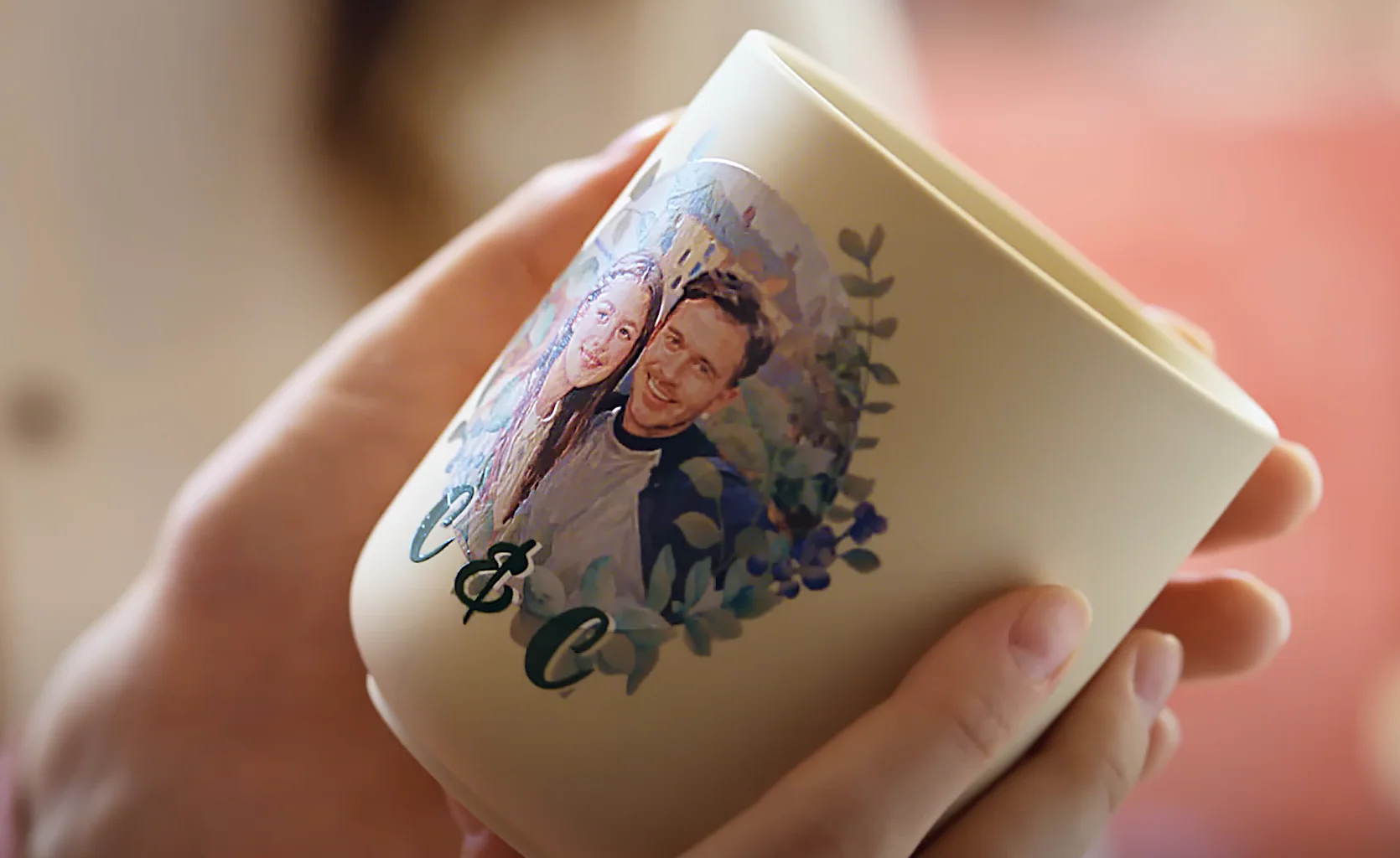
- Photo or pattern wrap mugs: Use mockups early and often to avoid seam issues and distortion near edges. Keep type minimal and high-contrast. A simplified “logo-only” backup version helps if the wrap feels too busy.
- Last-minute conference update: Use a template-first approach and keep the message short. Focus on legibility and placement rather than decorative detail. Export and verify at 100% zoom before sending to production.
Checklists
A) Before you start checklist
- Confirm mug type and print method assumptions (standard vs. color interior; wrap vs. front panel)
- Gather event logo and sponsor logos in vector or high-resolution formats
- Confirm official event name, year, dates, and any required tagline/URL
- Decide whether designs are one-sided or wraparound
- Define a sponsor/logo placement rule (single logo, tier row, back panel)
- Decide whether transparency is needed for artwork
- Plan safe margins away from handle zones and wrap extremes
- Set a simple file naming convention for variants
- Allow time for at least one mockup review cycle
B) Pre-export / pre-order checklist
- Key content stays out of handle zones and edge distortion areas
- Typography is readable at a quick glance and in a photo-like view
- Logos and icons are sharp at 100% zoom (no jagged edges)
- Spelling and sponsor names match approved copy
- Export format matches production requirements (PNG/PDF as required)
- Final exports are high quality (not web-optimized “small”)
- Mockup preview matches the final exported file
- Variants are correctly labeled and stored in one folder
- Master editable file saved separately from exports
- Quantities per variant recorded (attendee/sponsor/speaker/staff)
Common Issues and Fixes
- Text looks smaller than expected once previewed on a mug
Mugs are often viewed at a distance or in photos, which shrinks perceived text size. Increase font size and weight, shorten copy, and re-check with a handle-visible mockup. - Key content drifts into the handle zone
Shift the design’s focal area away from the handle and re-check with an angled preview. If the “front” matters, align the main mark to the intended viewing side rather than the center of the flat layout. - Logos print with jagged edges
This usually means the logo file was too small or not vector-based. Replace it with a vector or a higher-resolution PNG and re-export at high quality. - Colors look different than expected
Mockups apply lighting and printers vary by coating and method. Prioritize contrast and avoid subtle color differences for important elements. Keep a simplified version available if color complexity causes readability issues. - Wrap seam splits the design awkwardly
Reduce wrap complexity and keep the main mark centered in one viewing zone. For patterns, adjust the repeat so the seam is less noticeable. Confirm with multiple mockup angles. - Variant mix-ups happen during export
Use strict file naming and keep one “master reference” file unchanged. Track variants in a simple table (name, version, approved date, file name) to reduce errors. - Export quality looks fine on screen but prints soft
Re-export at higher quality and verify the file isn’t being scaled up by the printer workflow. Use PNG for crisp text and logos, and re-open the export at 100% zoom to confirm sharpness.
How To Use Mug Design Makers: FAQs
1) Is it better to start with a template or start from the printer’s specs?
Template-first can speed up early layout decisions and reduce setup time. Specs-first can reduce rework later if the printer has strict print-area templates. For conferences with uncertain production paths, keeping a template version and a spec-aligned version is often practical.
2) Should conference mugs be front-only or wraparound?
Front-only designs are simpler and reduce handle-zone conflicts. Wraparound designs can carry more information but require more careful seam planning and more mockup checks.
3) What matters more for conference mugs: detail or readability?
Readability usually matters more because mugs are seen quickly and often in photos. Large type, strong contrast, and a clear focal point tend to hold up better than intricate details.
4) How many mockup views are enough before exporting?
Two is a practical baseline: straight-on and angled with the handle visible. For wrap designs, add an opposite-side view to catch seam issues and edge distortion.
5) How should sponsor versions be handled without losing consistency?
Lock a base layout system and swap only the sponsor element in a fixed area. Enforce limits for logo size and color usage so variants remain consistent. A single naming convention and a variant tracker reduce mix-ups.
About the Author